> For the complete documentation index, see [llms.txt](https://easify.gitbook.io/easify-product-options/llms.txt). Markdown versions of documentation pages are available by appending `.md` to page URLs; this page is available as [Markdown](https://easify.gitbook.io/easify-product-options/product-personalizer-live-preview/enable-background-removal-for-file-upload.md).
# Enable Background Removal for File Upload
Give your customers a seamless, professional customization experience by enabling automatic background removal on uploaded images. With this feature, customers’ images are instantly cleaned up the moment they upload — no manual editing required on their end, and no extra work on yours.
{% hint style="info" %}
This feature is available from the **Premium** **plan**.
{% endhint %}
### Why Background Removal Is a Game-Changer
#### ✅ Professional Results, Instantly
Messy backgrounds are stripped away the moment a customer uploads, keeping product previews clean and on-brand without any manual editing.
#### 🛒 Less Friction at Checkout
No prep work needed from customers. It just works on upload, reducing hesitation and boosting purchase confidence.
A clean background-free image makes the final product look far more accurate and compelling, helping customers commit to their order.
### Step 1: Get your API key
Before enabling this feature on any option set, you need to connect an API key from a supported background removal provider.
Easify supports integration with the following services **(May 8th, 2026 Update)**
| Provider | Plan | Price | Notes |
| -------------------------------------------------- | ------------------------------- | -------------------- | ------------------ |
| [Remove.bg](https://www.remove.bg/pricing) | Pay-as-you-go (3–8,000 credits) | From $0.10/image | 1 image = 1 credit |
| | Lite — 40 credits/mo | $8.10/month | |
| | Pro — 200 credits/mo | $35.10/month | |
| | Volume+ — 500+ credits/mo | $80.10+/month | |
| [Removal.AI](https://removal.ai/pricing/) | Monthly subscription | $0.07–$0.14/image | 1 image = 1 credit |
| | Lifetime | $0.37–$1.89/image | |
| [Cutout.Pro](https://www.cutout.pro/image-pricing) | Free | 5 free credits | 1 image = 1 credit |
| | Subscription | $0.048–$0.063/credit | |
| | Pay-as-you-go | $0.047–$0.166/credit | |
| [Rembg](https://www.rembg.com/en/pricing) | Free | 60 credits/month | 1 image = 1 credit |
| | Premium membership | €0.003–€0.019/image | |
Choose the provider that fits your demand and budget, then grab your API key from their dashboard.
> 📝 **Note:**
>
> * For the best background removal quality, we recommend **Cutout.Pro**.
> * For the most budget-friendly option, go with **Rembg**.
>
> Don’t see the service you’re looking for? **Chat with us** and we’ll be happy to look into integrating it!
#### Remove.bg
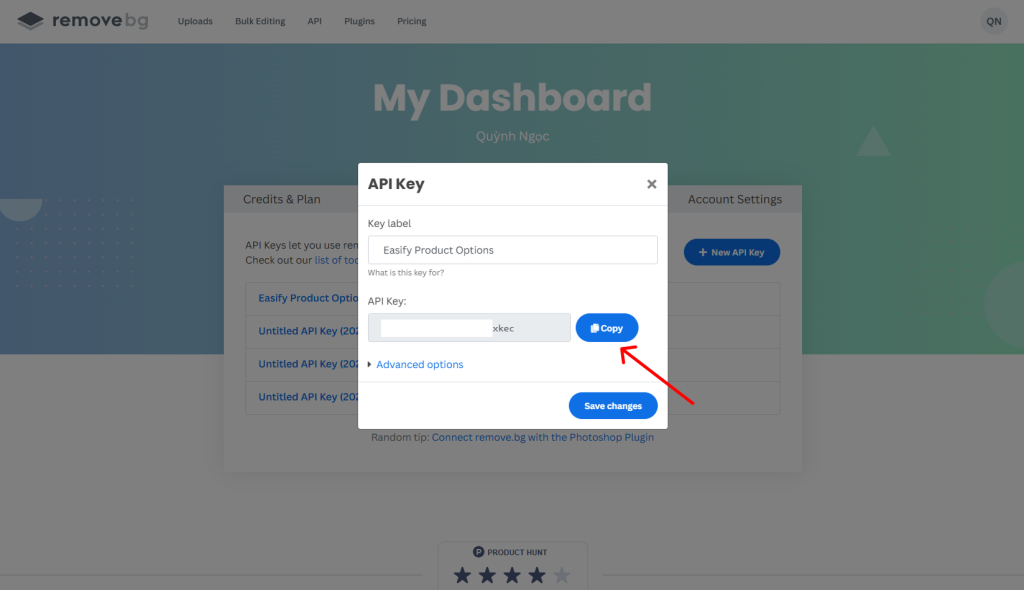
Log into your Remove.bg account and go to [Dashboard → API Key](https://www.remove.bg/dashboard#api-key) to copy your key.
#### Removal.AI
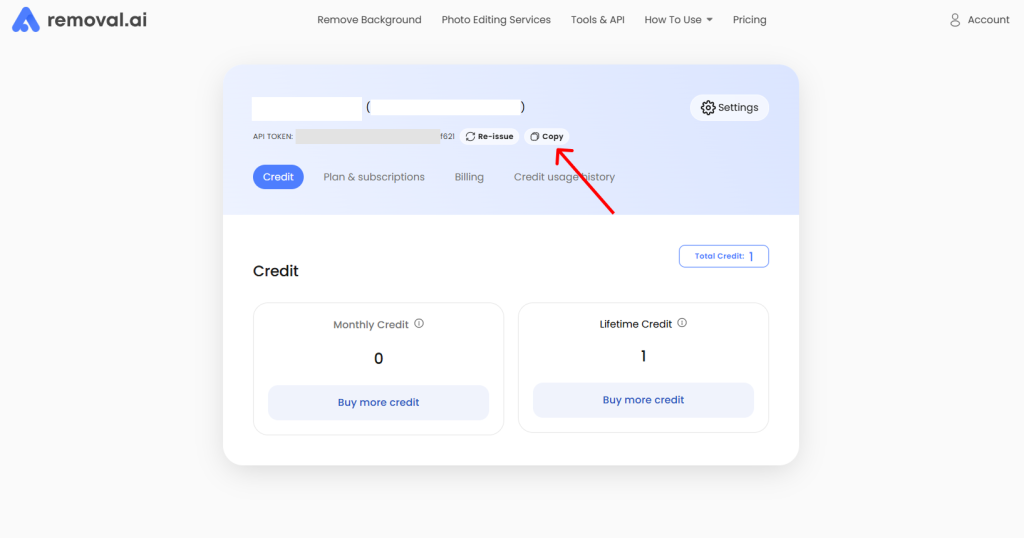
Log into your Removal.AI account and go to [My Account → API Key](https://removal.ai/my-account/) to copy your key.
#### Cutout.Pro
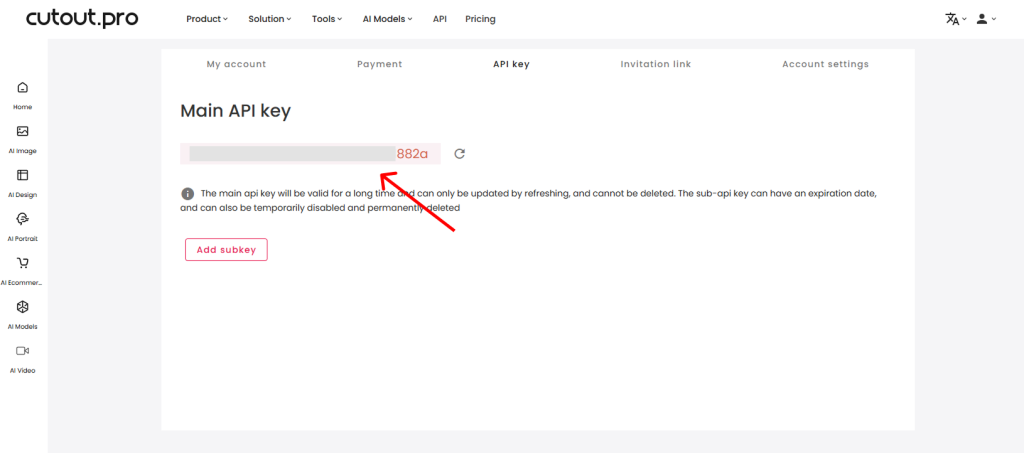
Log into your Cutout.Pro account and go to [Account → Secret Key](https://www.cutout.pro/user/secret-key) to copy your key.
#### Rembg
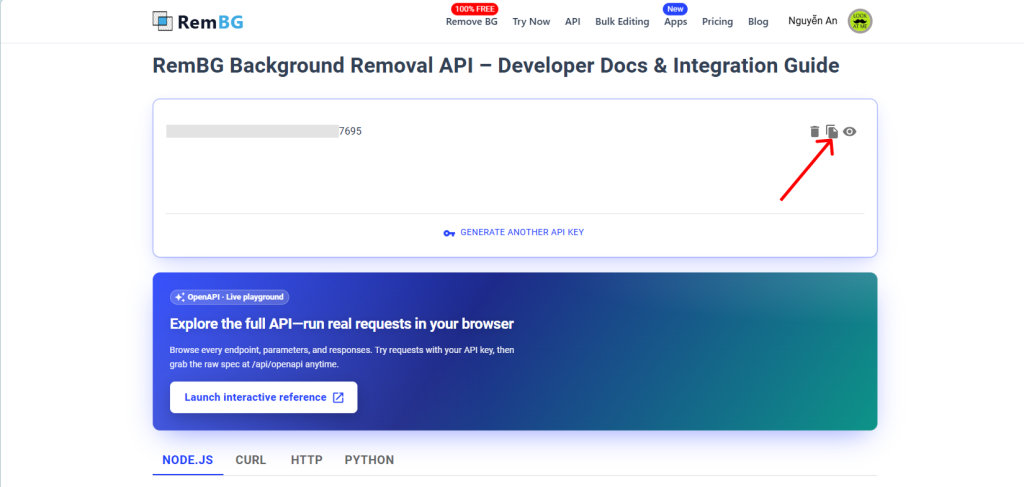
Log into your Rembg account and go to [API page](https://www.rembg.com/en/api-usage) to copy your key.
### Step 2: Connect a Background Removal Service
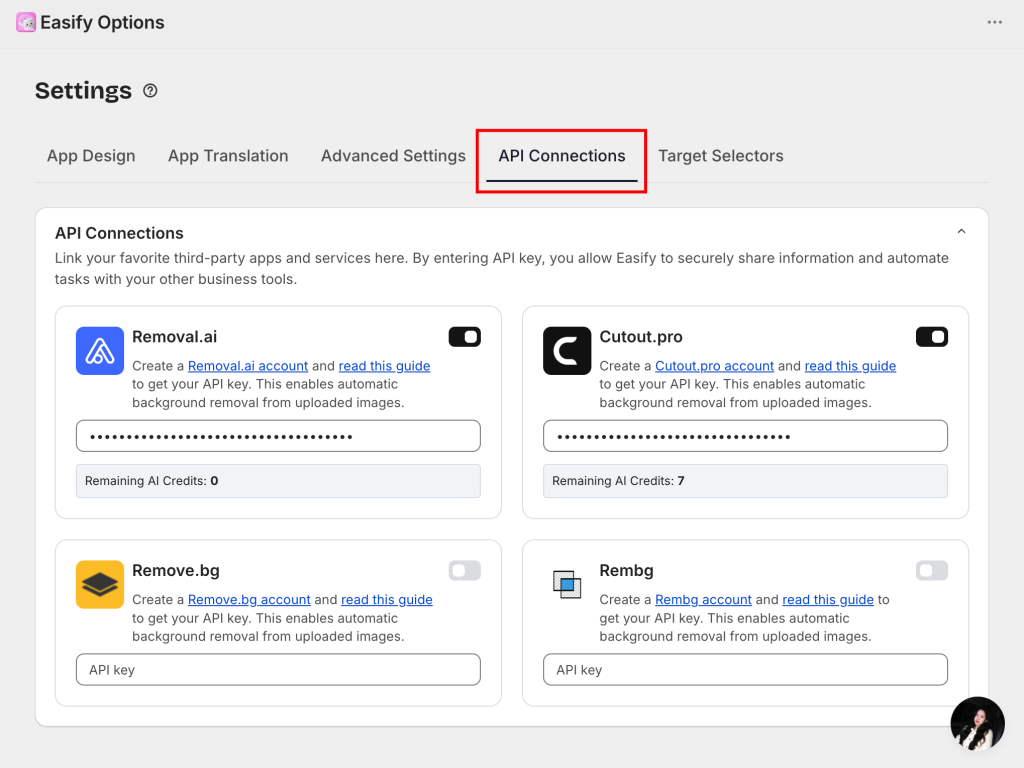
**Go to:** Easify Product Options → Settings → **External Apps** tab
1. In the **External Apps** tab, find your chosen provider’s card.
2. Paste your API key into the input field. The toggle will automatically turn **ON**.
3. Click **Save**. Easify will validate the key by sending a test request.
4. Once connected, you’ll see a *“Settings updated”* confirmation.
You can also check the Remaining AI Credits to estimate the usage on your storefront!
### Step 3: Enable Background Removal in Option Set
Once a provider is connected, you can turn on background removal for any **File Upload** option.
1. Open the **Option Set** you want to configure (or create a new one).
2. Select or add a **File Upload** option.
3\. In the option’s Basic Settings, set **File Type** to **Image files**.
4\. In the Product Personalizer tab, the **“Auto-remove image background”** toggle will become available — turn it **ON**.
5\. Use the **“Removal tool”** dropdown to select which connected provider to use. This dropdown will include the tools you have connected in App Settings.
6\. Save your option set!
> 🎨 **Note:**
>
> * The background removal toggle is only available when the File Type is set to **Image file**.
> * If no provider is connected, you will see no removal tool available to choose
### How It Works for Customers
Once enabled, the experience is fully automatic:
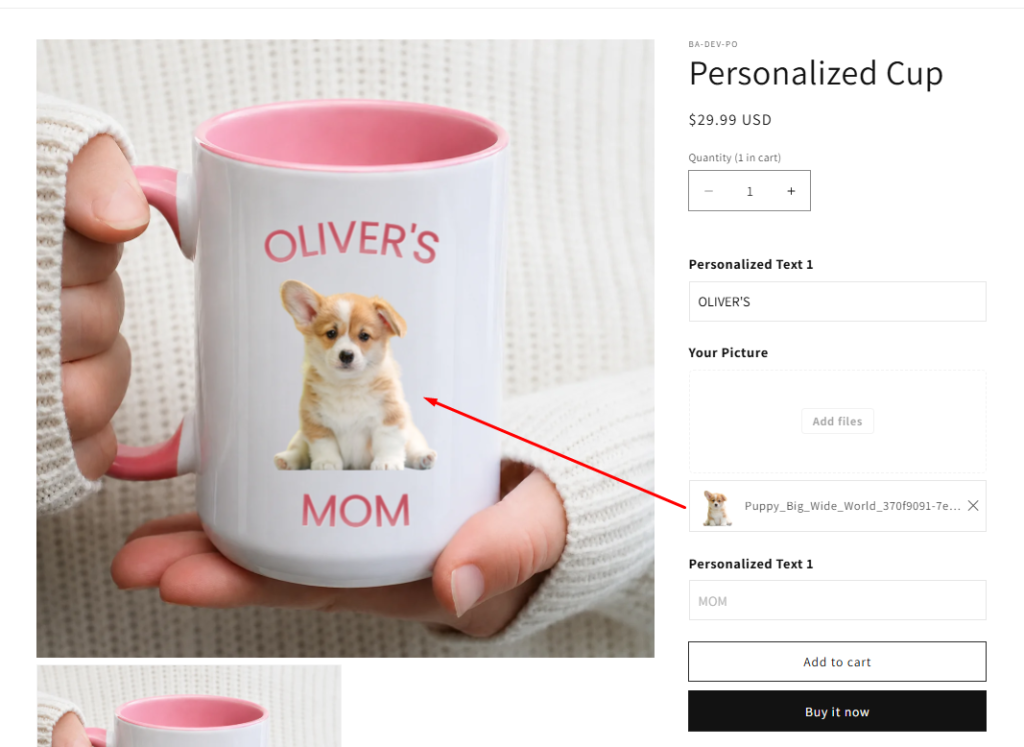
1. **Customer uploads an image** → Background removal is triggered immediately.
2. **Success** → The uploaded image is replaced with the background-removed version. Customers will see it right on the product image.
#### What You See in Orders
For each file upload option, the order detail shows:
* The **original uploaded image** (filename.png)
* The **background-removed image** returned by the third party service
* A **Preview** of the final product with the processed image applied
### Need Assistance?
If you run into any issues setting up background removal or it isn’t working as expected in your store, our support team is ready to help. Reach out anytime via the in-app live chat for prompt assistance!