> For the complete documentation index, see [llms.txt](https://easify.gitbook.io/easify-box-bundle-builder-docs/llms.txt). Markdown versions of documentation pages are available by appending `.md` to page URLs; this page is available as [Markdown](https://easify.gitbook.io/easify-box-bundle-builder-docs/user-guide/visual-editor/free-gifts/setup-free-gifts-bar.md).
# Setup Free Gifts Bar
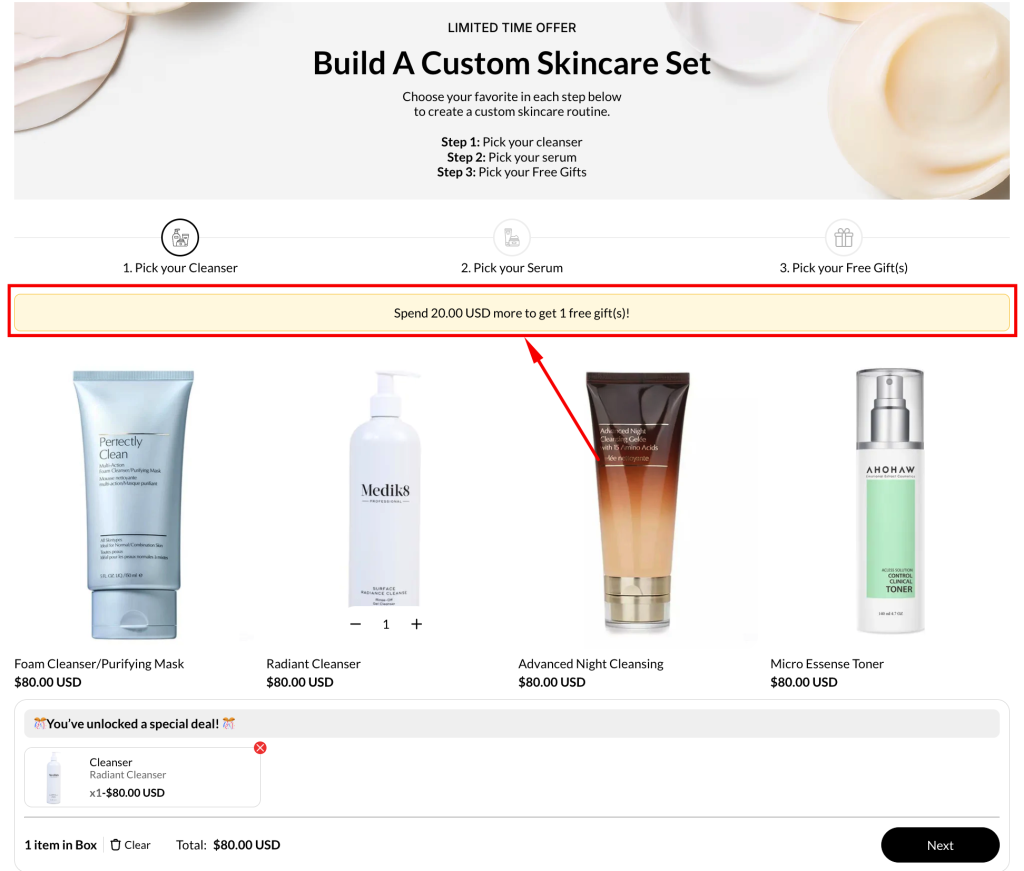
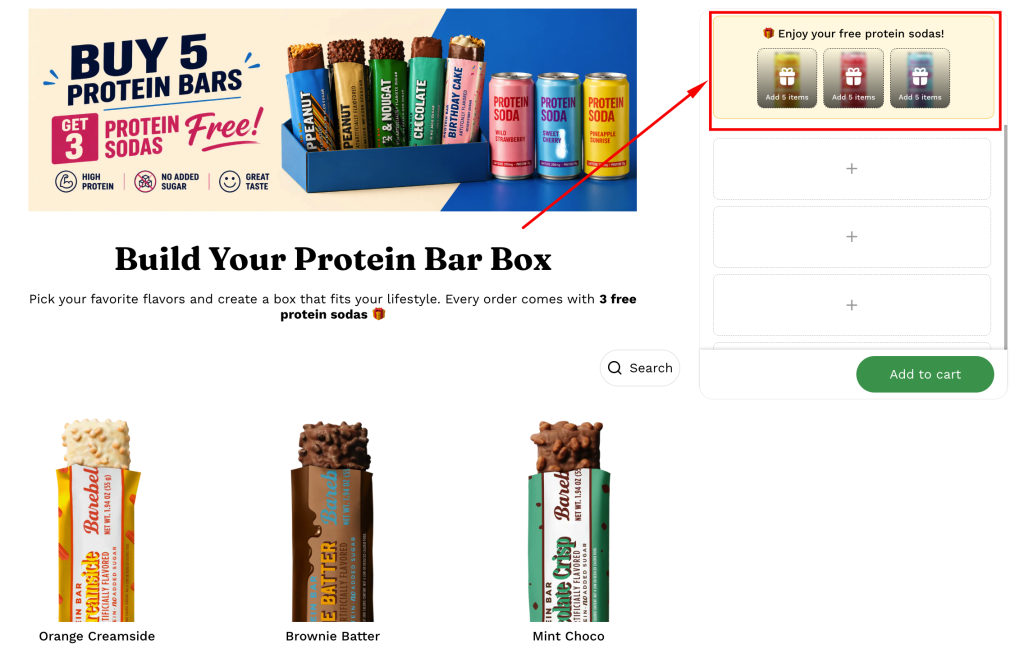
In addition to setting up the logic, it’s important to clearly communicate the offer to customers. The **Free Gifts Bar** helps highlight available rewards and motivates customers to unlock them as they build their box.
:point\_right: In this guide, we’ll **deep dive into the step‑by‑step configuration** of Free Gifts Bar
{% hint style="info" %}
If you’d prefer a broader overview and want to explore **real use cases**, check out our [Add Free Gifts to Box](/easify-box-bundle-builder-docs/user-guide/visual-editor/free-gifts.md) guide.
{% endhint %}
## When to Use Free Gifts Bars.
Use the Free Gifts Bar whenever you want to visually highlight a free gift offer in your box!
Free Gifts Bars can be used for both **Auto add** **to cart** and **Buyer manually** **chooses**.
You can place them inside the *box content* or in the *Quick Summary* — whichever works best for your setup.
## How to Set up Free Gifts Bar
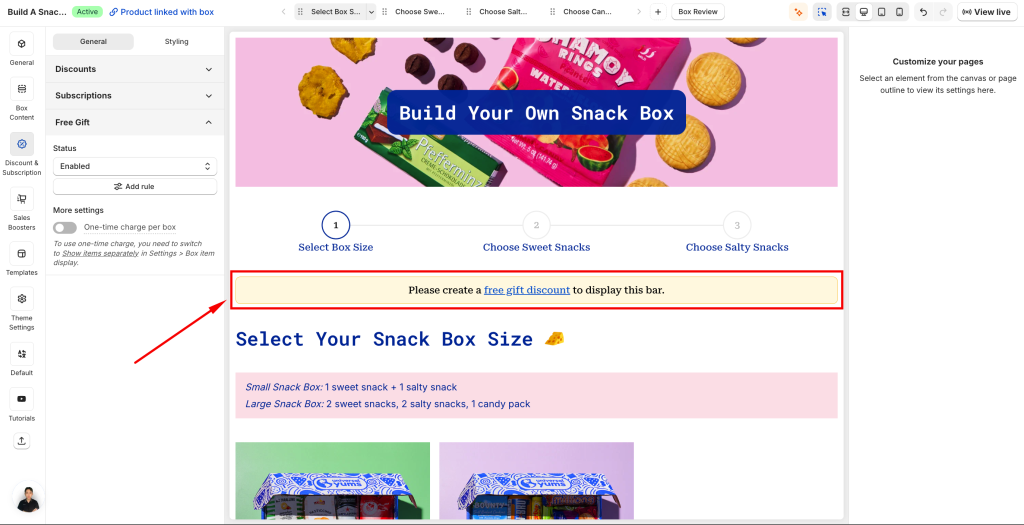
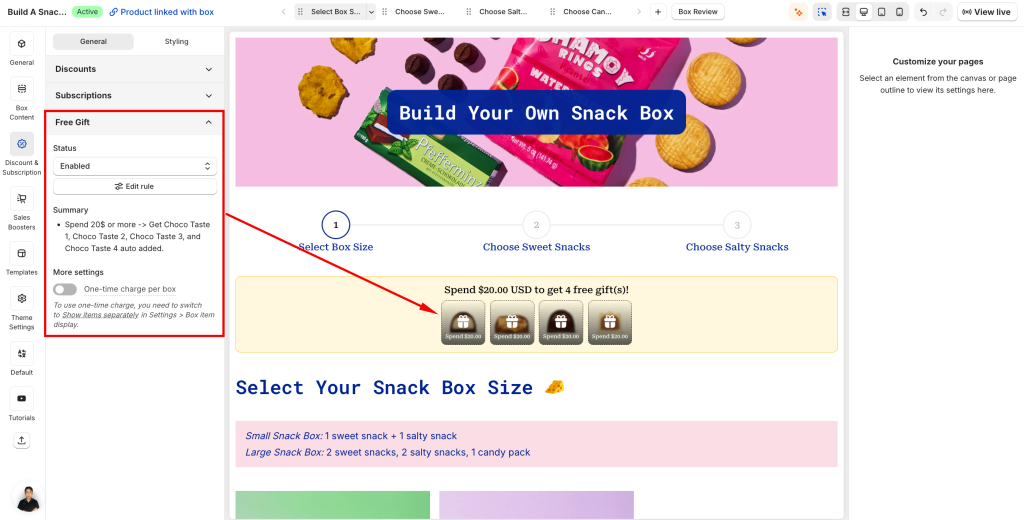
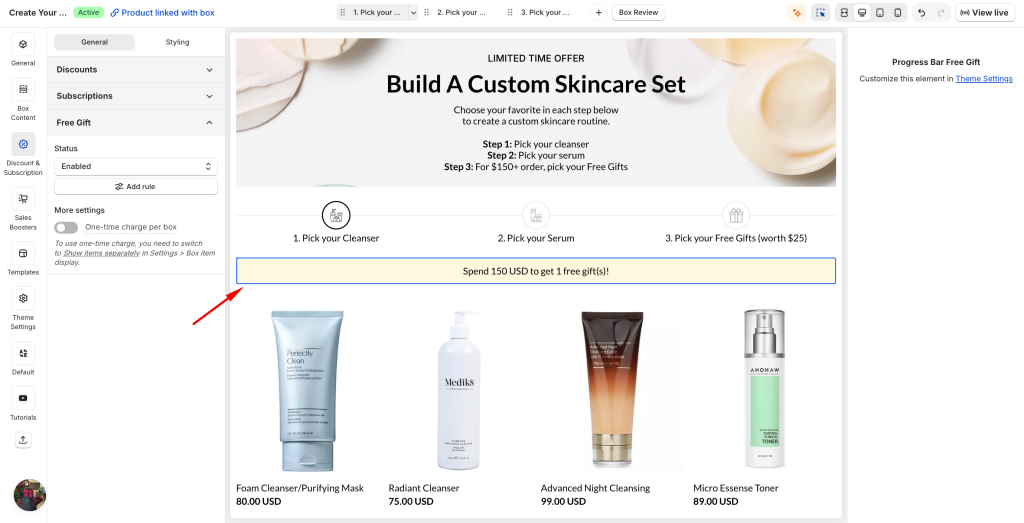
Start by enabling a Free Gift discount. Once enabled, the Free Gifts Bar will automatically appear at the *top of your box.*
:point\_right: If no Free Gift discount is configured, you will see the message:\
\&#xNAN;**“Please create a free gift discount to display this bar.”**
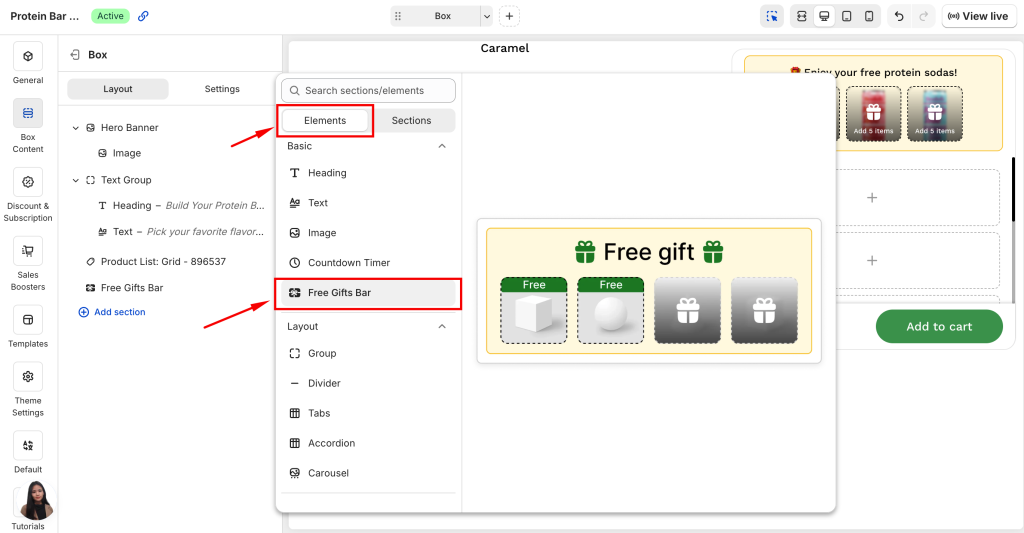
You’ll also notice that a Free Gifts Bar element has been added to your Box Content. It behaves like any other element: you can show or hide it, reorder it, move it into a banner, delete it, and more!
{% hint style="warning" %}
**Important:** Note that the Free Gifts Bar behaves differently depending on your gift mode — **Auto add to cart** or **Buyer manually chooses**. We’ll cover each in detail in the next section.
{% endhint %}
{% stepper %}
{% step %}
### Auto add to cart
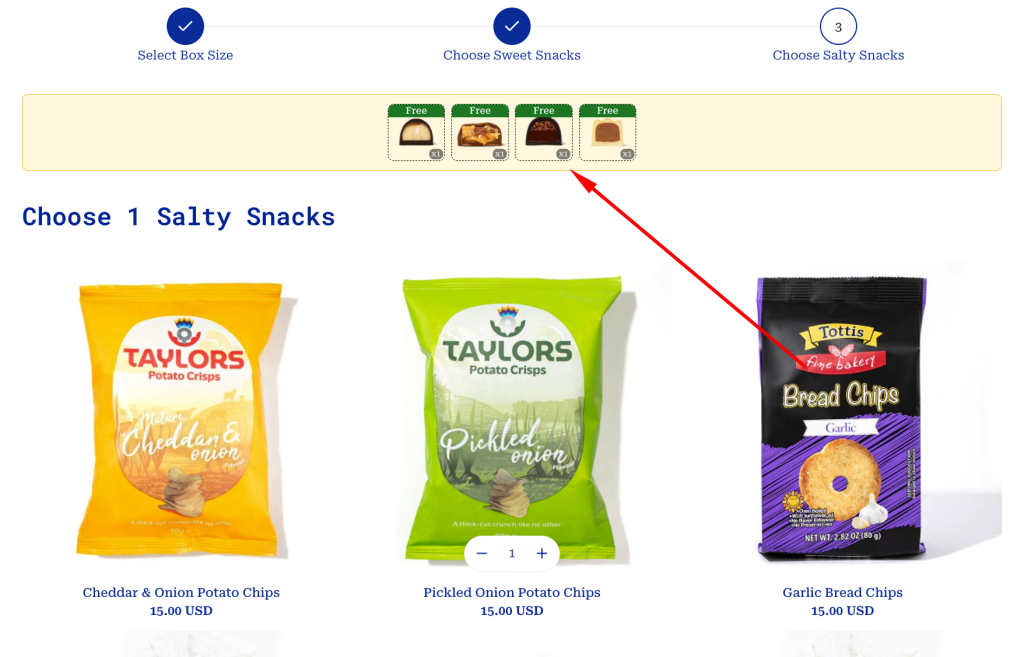
For **Auto add to cart**, free gifts are displayed directly in the bar.
* Customers can see upcoming gifts as they build their box
* Locked and unlocked states are clearly shown
* Once conditions are met, gifts are marked as unlocked
This helps customers understand what they can unlock and encourages them to add more items.
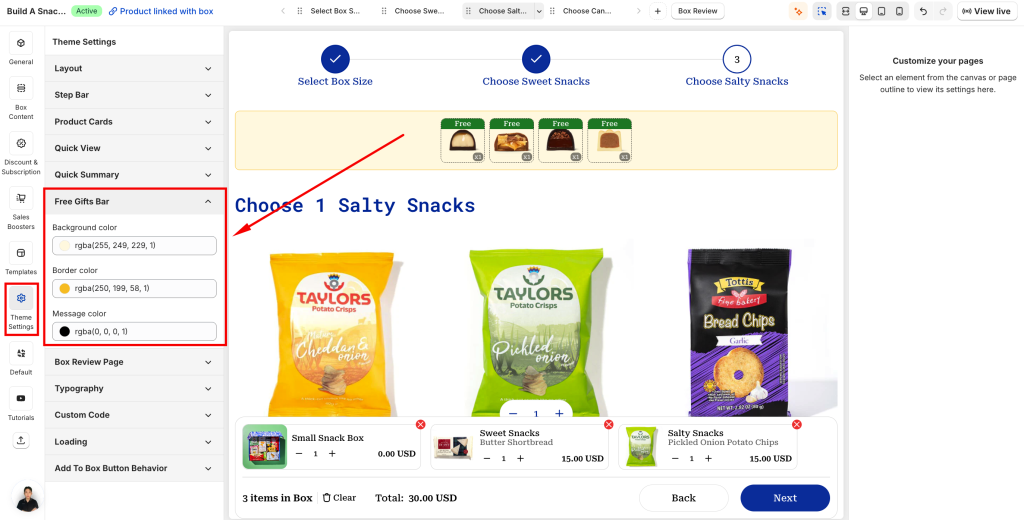
To customize the Free Gifts Bar:
* Go to **Theme Settings → Free Gifts Bar**
* You can adjust:
* Background color
* Border color
* Message color
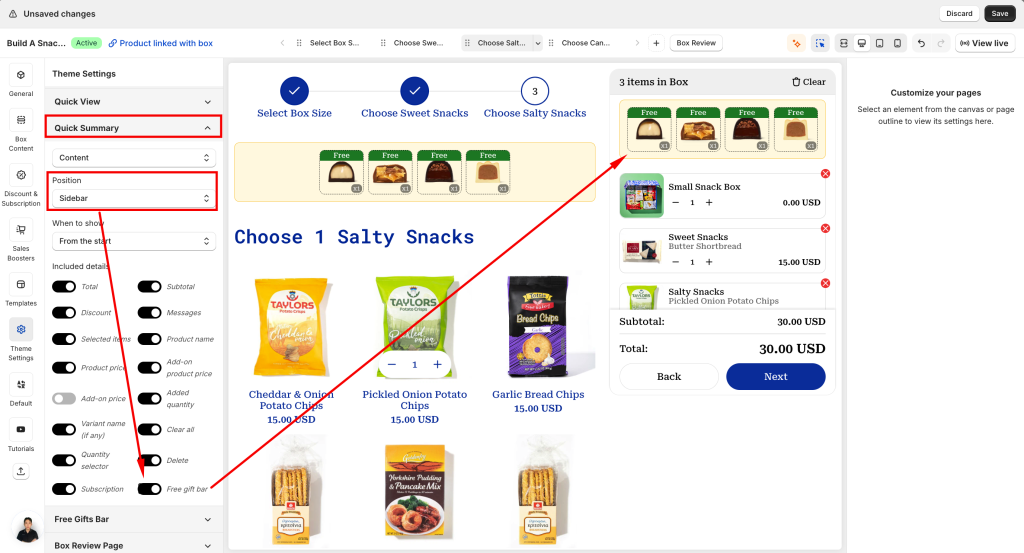
If your box template includes a **Sidebar summary**, you can also display the Bar there:
* Go to **Quick Summary**
* Enable **Free Gifts Bar**
{% endstep %}
{% step %}
### Buyer manually chooses
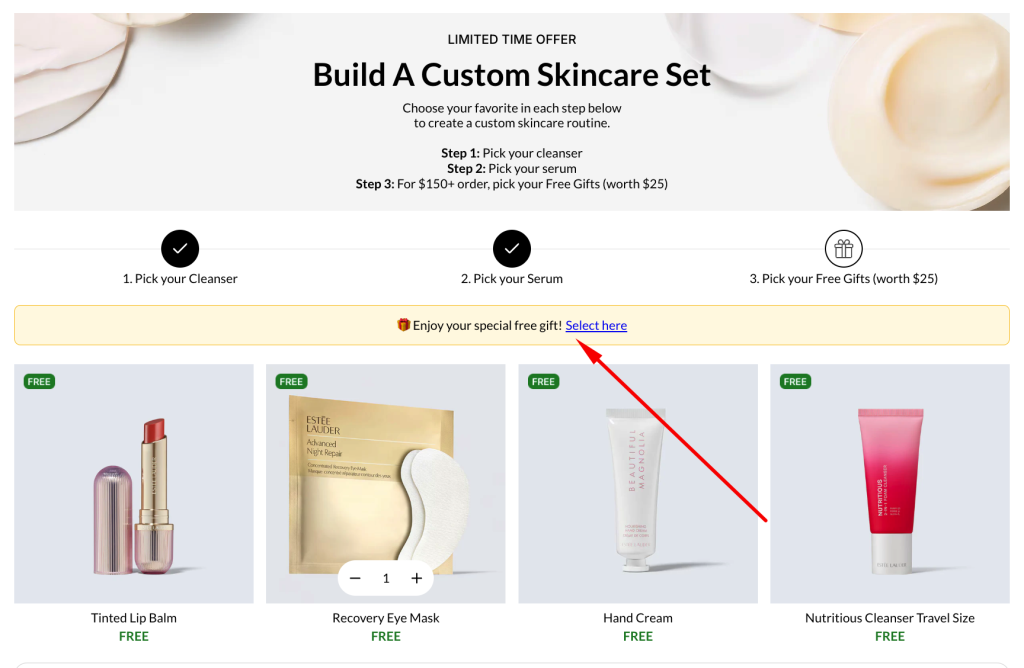
For **Buyer manually chooses,** the Free Gifts Bar is still displayed, but it works slightly differently.
* The bar shows a message that free gifts are available
* Gifts are not displayed directly in the bar
* Instead, they are listed in the **Product List: Gift**
Once customers qualify:
* A **“Select here”** button appears in the Free Gifts Bar
* Clicking this button navigates customers to the Product List where they can choose their gift
{% endstep %}
{% endstepper %}
### Need Help?
Questions? Stuck somewhere?
We’re always here to help! Just reach out via our **in-app live chat** for 24/7 support.
---
# Agent Instructions
This documentation is published with GitBook. GitBook is the documentation platform designed so that both humans and AI agents can read, navigate, and reason over technical content effectively. Learn more at gitbook.com.
## Querying This Documentation
If you need additional information that is not directly available in this page, you can query the documentation dynamically by asking a question.
Perform an HTTP GET request on the current page URL with the `ask` query parameter:
```
GET https://easify.gitbook.io/easify-box-bundle-builder-docs/user-guide/visual-editor/free-gifts/setup-free-gifts-bar.md?ask=
```
The question should be specific, self-contained, and written in natural language.
The response will contain a direct answer to the question and relevant excerpts and sources from the documentation.
Use this mechanism when the answer is not explicitly present in the current page, you need clarification or additional context, or you want to retrieve related documentation sections.