> For the complete documentation index, see [llms.txt](https://easify.gitbook.io/easify-box-bundle-builder-docs/llms.txt). Markdown versions of documentation pages are available by appending `.md` to page URLs; this page is available as [Markdown](https://easify.gitbook.io/easify-box-bundle-builder-docs/user-guide/getting-started/activate-the-app.md).
# Activate the App
After installing the **Easify Box Builder** app, follow the steps below to activate it on your current Shopify theme. This step is required to make your “Build a Box” pages appear on your storefront.
### Option 1 (Recommended): Activate During App Onboarding
Right after installation, you’ll go through a quick and friendly onboarding process.
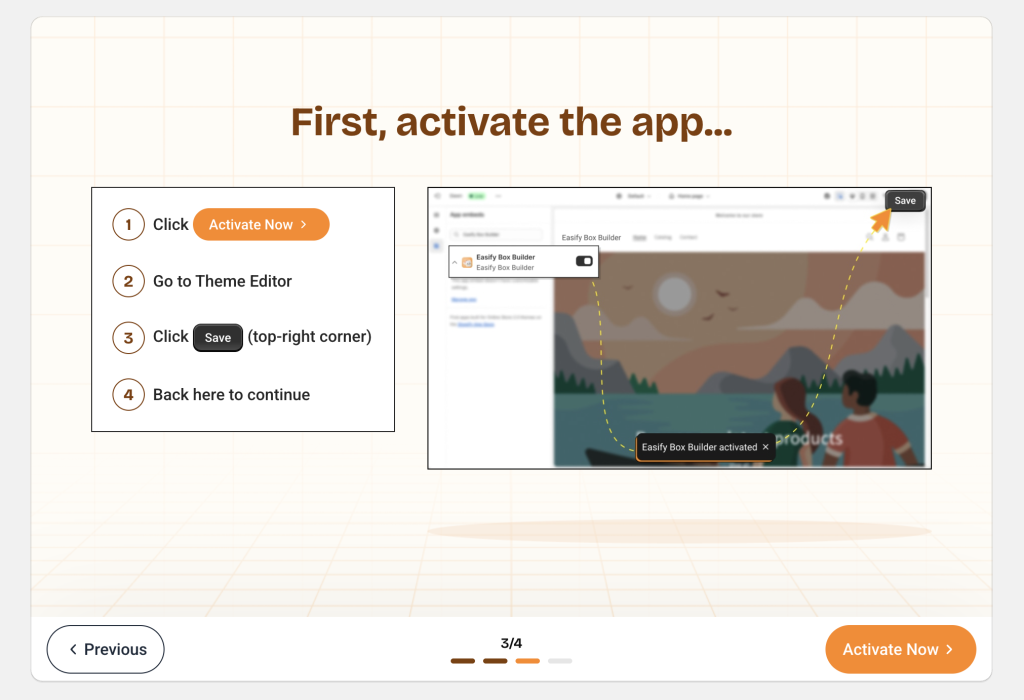
* When you reach the **“First, activate the app…”** screen, click the **Activate Now** button.
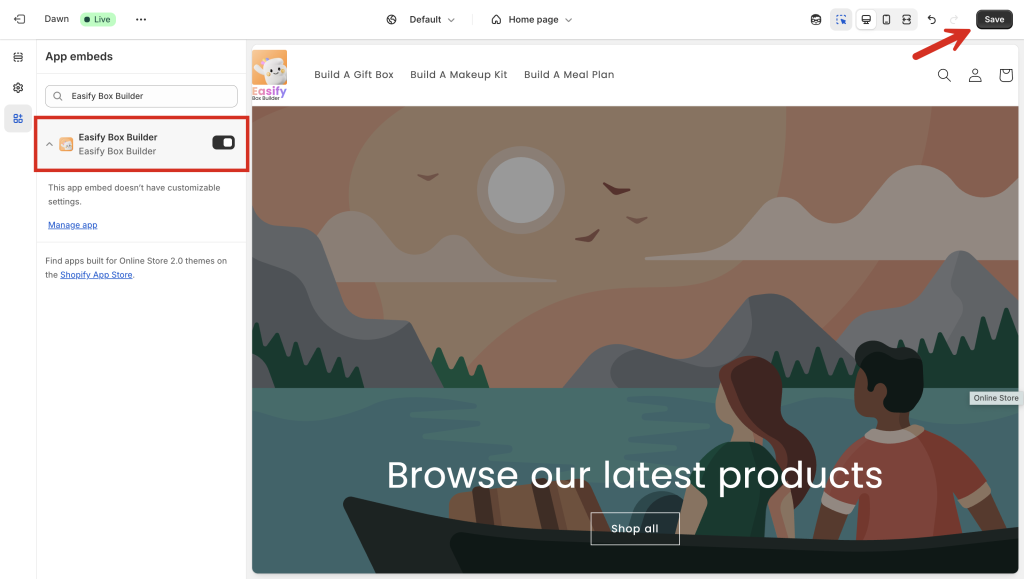
* You’ll be taken directly to the **Theme Editor**, with the **App embeds** section already open and **Easify Box Builder** enabled.
* Click **Save** to complete the activation.
* After saving, simply close the Theme Editor tab and **return to the previous onboarding tab** to continue creating your first box.
### Option 2: Activate from the App Dashboard
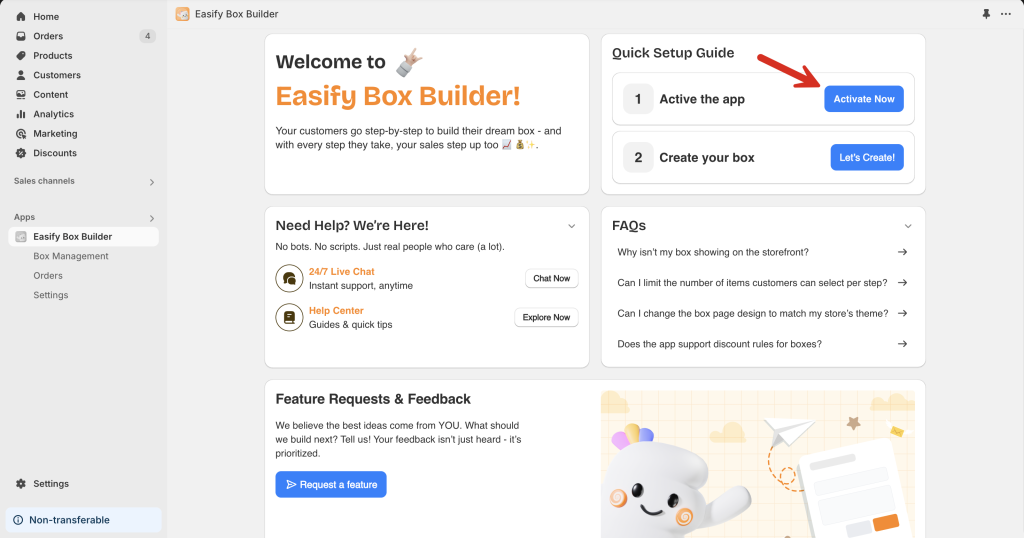
* Open the **Easify Box Builder** app.
* In the **Quick Setup Guide**, click the **Activate Now** button.
* You’ll be redirected to the **Theme Editor**, where the **App embeds** section will open with the app already enabled.
* Just click **Save** to finish.
### Option 3: Activate from Shopify Admin
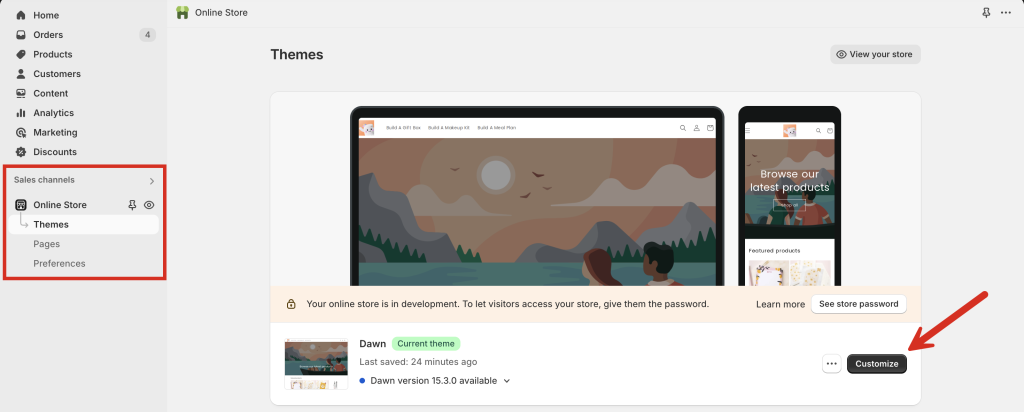
* From your **Shopify admin**, go to **Sales Channels > Online Store**.
* Click **Customize** next to your current theme to open the **Theme Editor**.
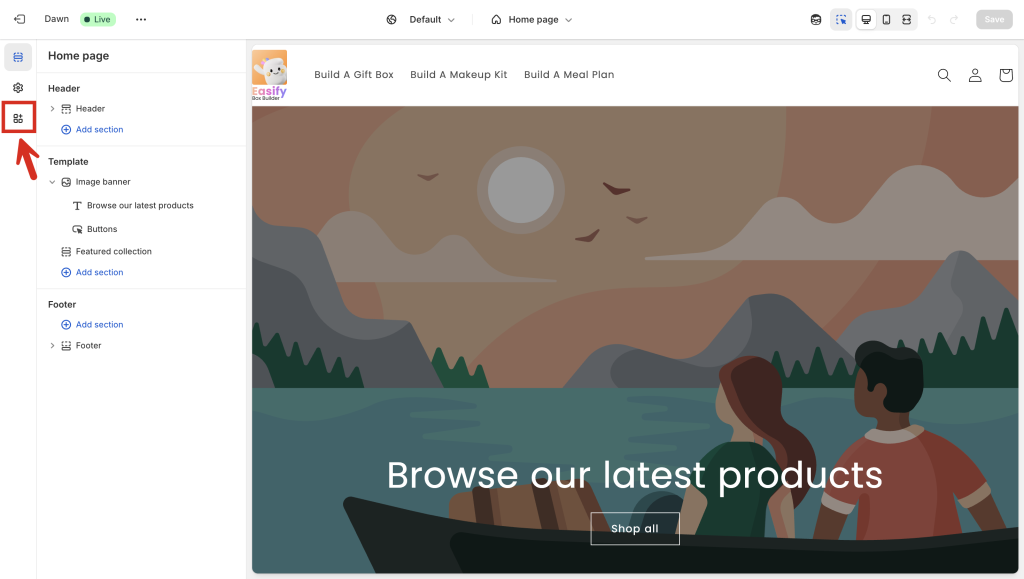
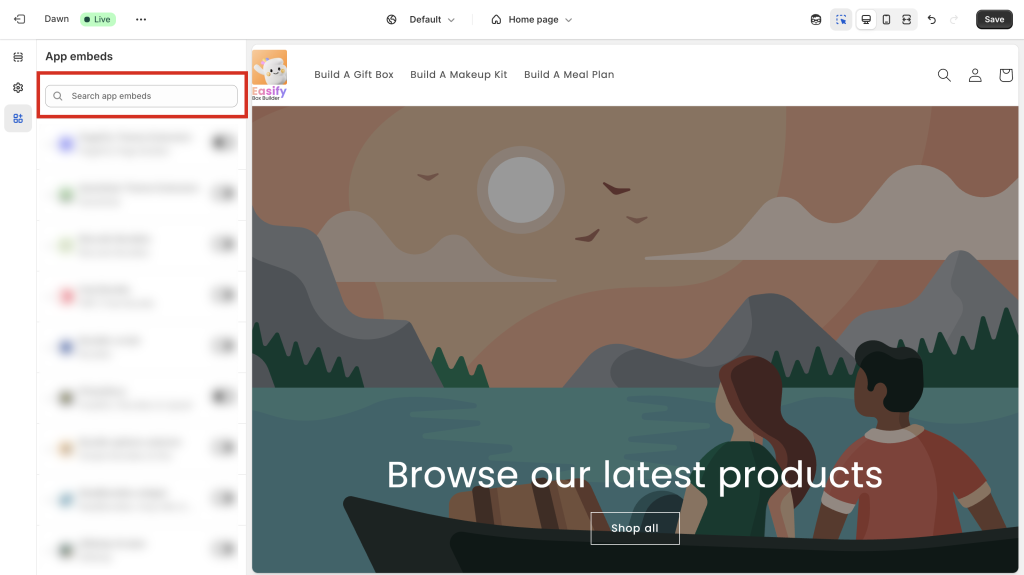
* In the Theme Editor, open the **App embeds** tab.
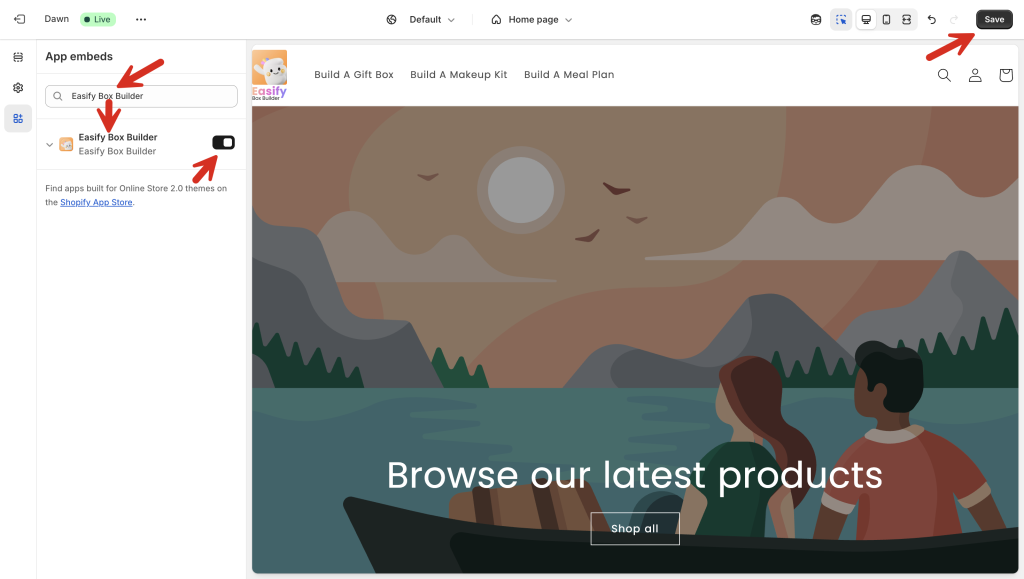
* Use the **search bar** to find “Easify Box Builder”.
* Toggle the switch to **enable** the app.
* Click **Save** to apply changes.
#### Important: Don’t Forget to Save!
Even if you see the message **“Easify Box Builder activated”**, the app won’t be fully enabled unless you click **Save** in the Theme Editor.
#### How to Double-Check If It’s Activated
To confirm that the app is active:
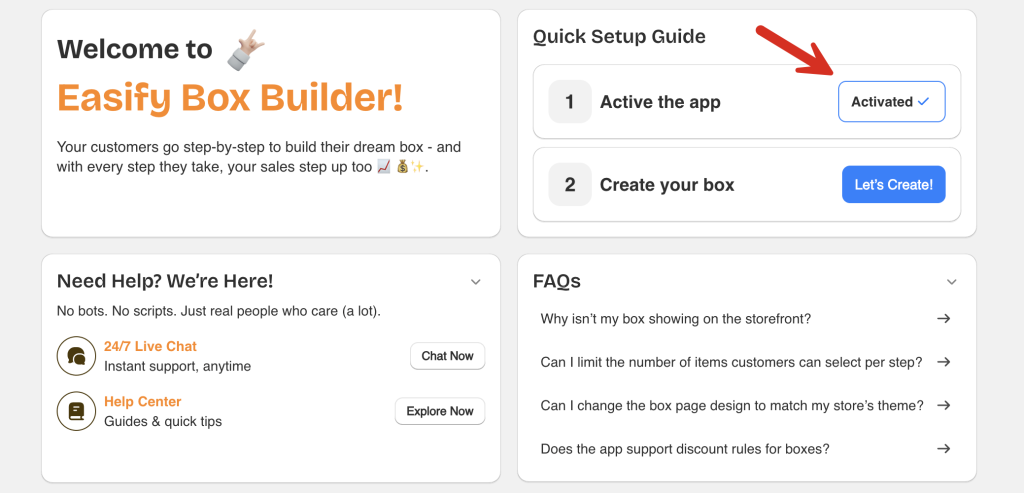
* Go back to the **App dashboard**.
* If activation was successful, the initial **“Activate Now”** button in the Quick Setup Guide will change to **“Activated”**.
## Need Help?
If you run into any issues, feel free to reach out via our **in-app live chat**.\
We’re always here to help!
---
# Agent Instructions
This documentation is published with GitBook. GitBook is the documentation platform designed so that both humans and AI agents can read, navigate, and reason over technical content effectively. Learn more at gitbook.com.
## Querying This Documentation
If you need additional information that is not directly available in this page, you can query the documentation dynamically by asking a question.
Perform an HTTP GET request on the current page URL with the `ask` query parameter:
```
GET https://easify.gitbook.io/easify-box-bundle-builder-docs/user-guide/getting-started/activate-the-app.md?ask=
```
The question should be specific, self-contained, and written in natural language.
The response will contain a direct answer to the question and relevant excerpts and sources from the documentation.
Use this mechanism when the answer is not explicitly present in the current page, you need clarification or additional context, or you want to retrieve related documentation sections.