> For the complete documentation index, see [llms.txt](https://easify.gitbook.io/easify-box-bundle-builder-docs/llms.txt). Markdown versions of documentation pages are available by appending `.md` to page URLs; this page is available as [Markdown](https://easify.gitbook.io/easify-box-bundle-builder-docs/user-guide/box-types/fixed-box-price.md).
# Fixed Box Price
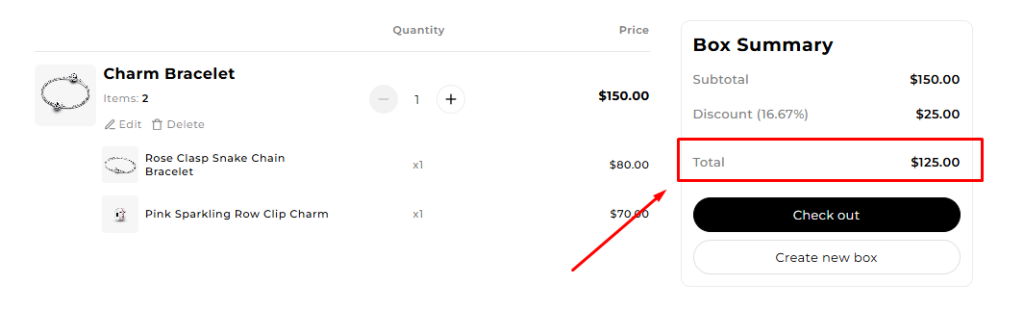
A **Fixed Box Price** allows you to sell a **pre-defined** bundle of items for a single, set price. Unlike other box types, this model offers one specific deal: customers pay **one fixed price** to get **one fixed number of items**.
💡 It’s perfect for curated sets, starter kits, or “build-your-own” bundles where you control the value proposition.
This guide will walk you through creating a Fixed Box Price offer in Easify.
## Common Use Cases
There are two styles of Fixed Box Price setups.
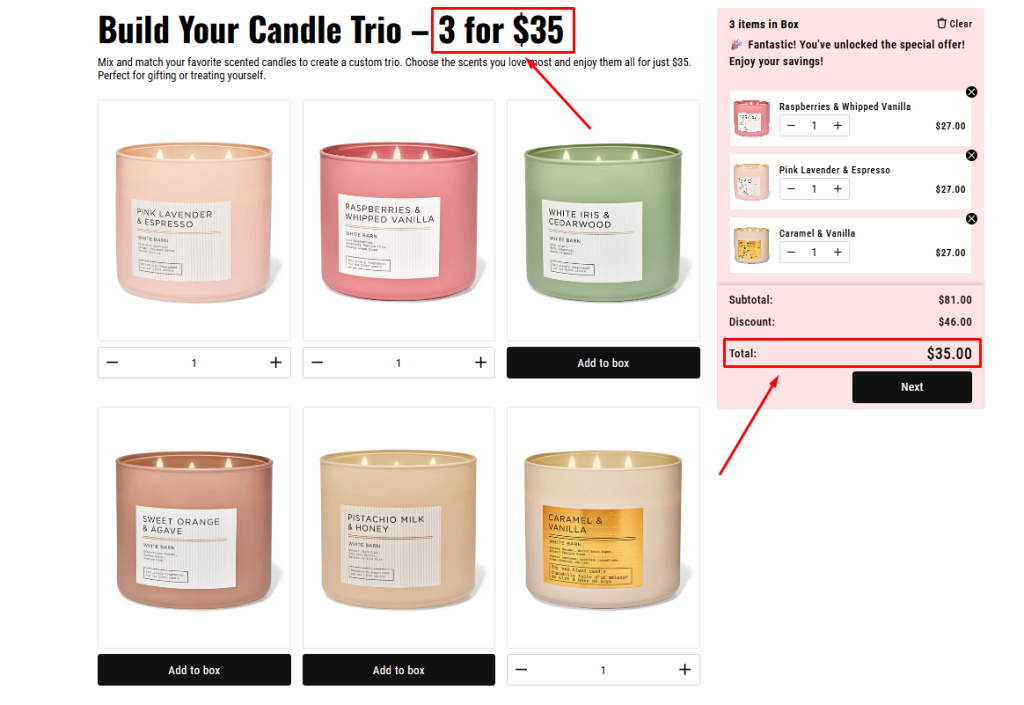
* **One-page box:** Customers build their box on a single page — quick and straightforward.
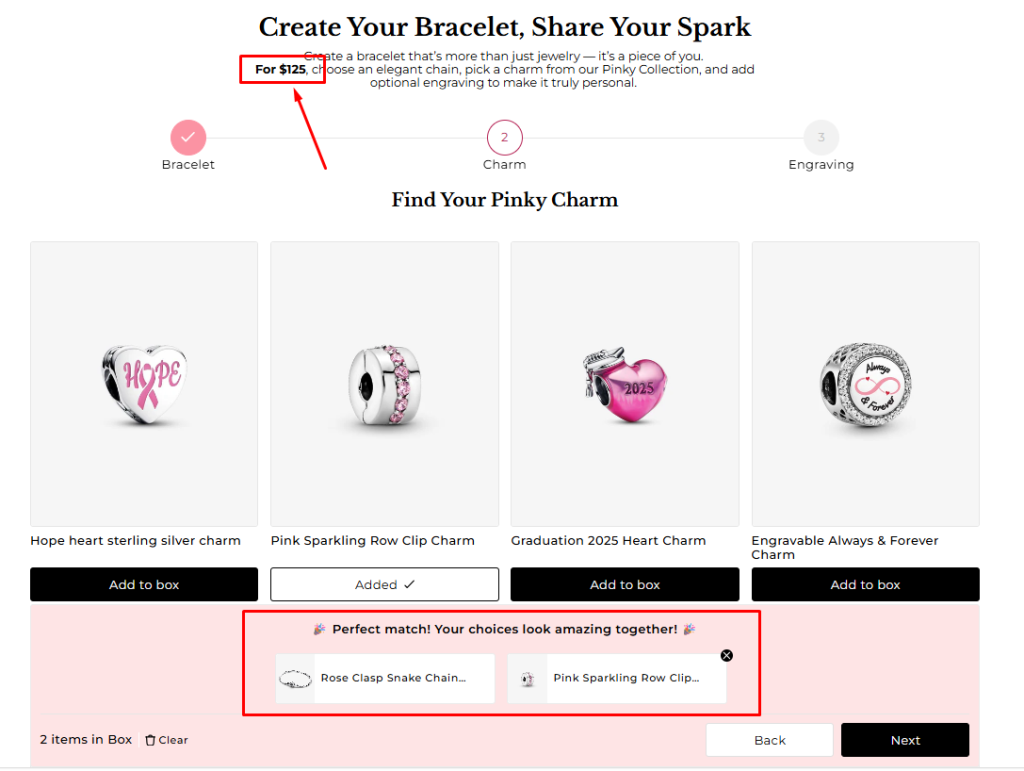
* **Multi‑page box:** Customers move through multiple steps — perfect for larger or more complex bundles.
***Here are some other demo templates you can explore for inspiration***:
One-page Templates
* [Swim Set](https://easify-box-bundle-builder.myshopify.com/products/swim-set-4?variant=47018290020483)
* [Candle Trio](https://easify-box-bundle-builder.myshopify.com/products/candle-trio-3?variant=46996736442499)
* [Nail Polish Set](https://easify-box-bundle-builder.myshopify.com/products/nail-polish-set-1?variant=46996736409731)
* [Meal Box](https://easify-box-bundle-builder.myshopify.com/products/meal-box-with-default-selected-items?variant=46982847824003)
Multi-page Templates
* [Swim Set](https://easify-box-bundle-builder.myshopify.com/products/swim-set-3?variant=46996736376963)
* [Meal Box](https://easify-box-bundle-builder.myshopify.com/products/meal-box-3?variant=47008844316803)
* [Charm Bracelet](https://easify-box-bundle-builder.myshopify.com/products/charm-bracelet-2?variant=46989749321859)
## How to Create a Fixed Box Price
{% stepper %}
{% step %}
### **Step 1: Create a New Fixed-Price Box**
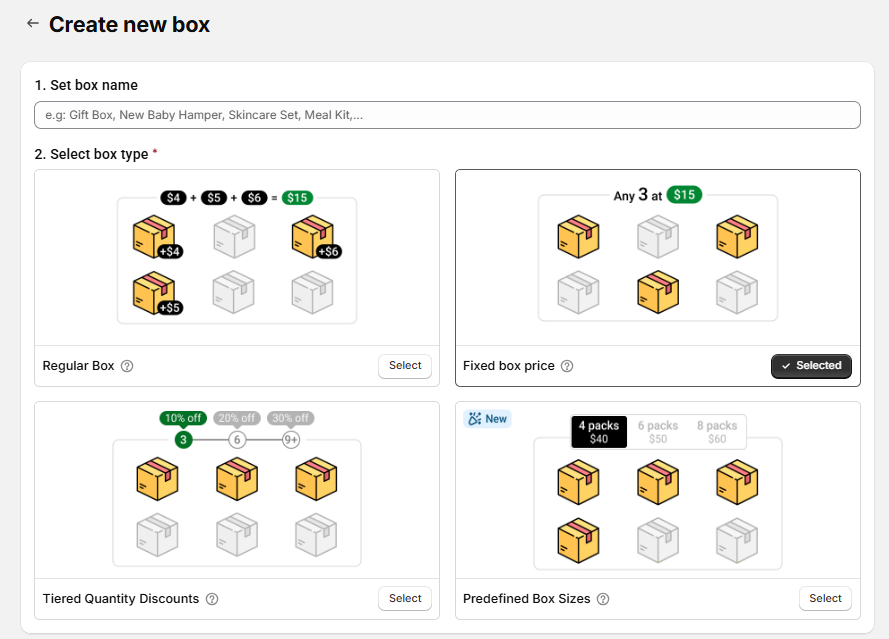
From the Easify Box Builder app admin, go to **Box Management** *→* Click the **Create box** button. Then:
* Enter your box name.
* Select box type: **Fixed box price**
* Template: Choose a starting point. We recommend using a template.
* Using a Template: Easify offers nearly 30 templates, with 7 specifically designed for Fixed Box Price. This gives you a ready-made structure to customize, saving you time.
* Starting from Scratch: Select this if you prefer to build the box entirely yourself.
After making your selections, click **Start building** to open the Visual Editor.
{% endstep %}
{% step %}
### **Step 2. Configure Your Single Box Offer**
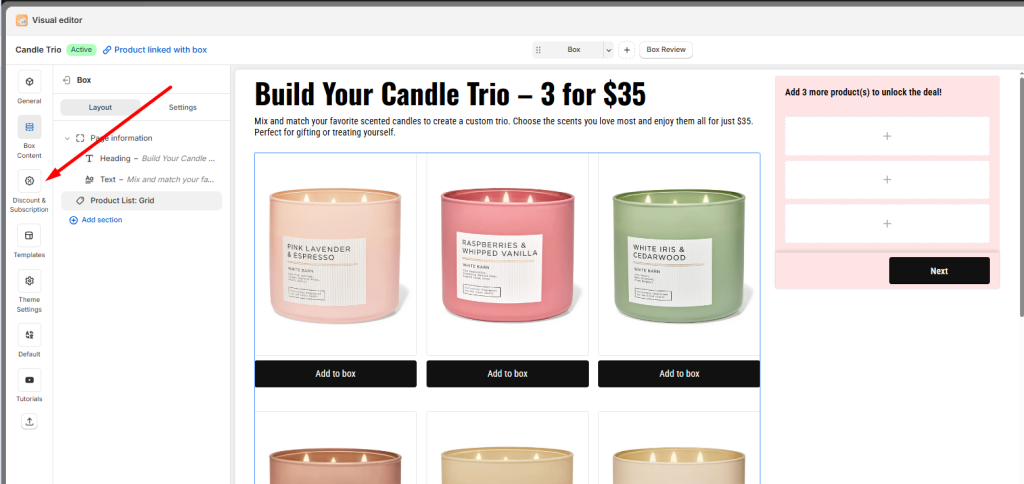
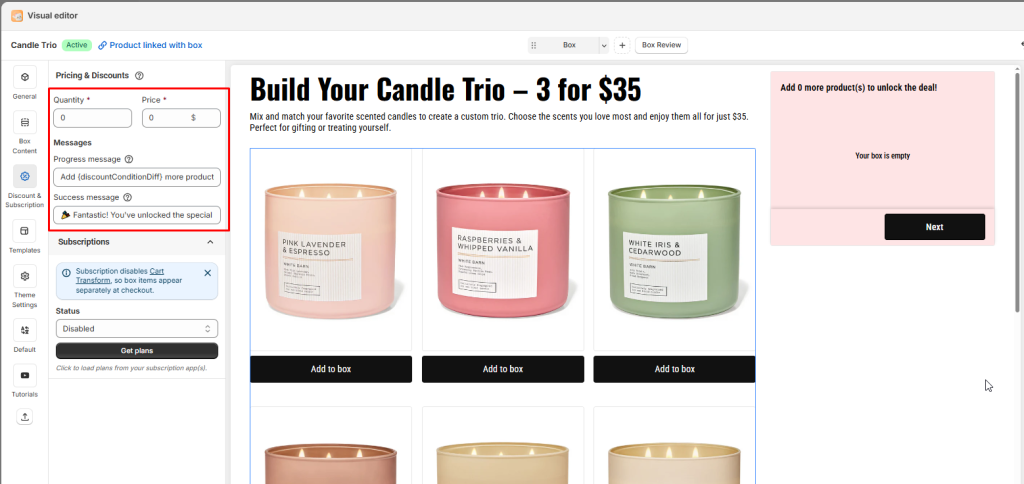
In the **Visual Editor**, go to the **Discounts** section. Here, you will define the single, fixed offer for your box.
* **Quantity:** Enter the **exact number of items** a customer must select. This defines the size of your box (e.g., 5 items).
* **Price:** Enter the **fixed price** the customer pays for the entire box (e.g., $30). This is the total amount they will be charged
**Message**
* **Progress Message:** A motivational message that appears when customers need more items to qualify for the offer (e.g., “Add 3 more product(s) to unlock the deal!”).
* **Success Message:** The confirmation text shown when the customer has selected the required quantity (e.g., “🎉 Fantastic! You’ve unlocked the special offer! Enjoy your savings!”).
**Subscription**
If you’re using a subscription app, you can combine it with **Fixed Box Price** to keep your pricing simple and consistent. This setup ensures customers pay the same fixed amount for each recurring box, no matter which items are included.
> 👉🏻 Want to dive deeper? Check out our [**comprehensive guide to Subscriptions** ](https://easifyapps.com/docs/connect-subscription-plans-to-boxes/)for step‑by‑step instructions and best practices.
> {% endstep %}
{% step %}
### **Step 3. Customize content in the Visual Editor**
From the left menu, go to **Box Content** to edit your page.
Add sections and elements (e.g., banners) and assign products to the box.
You can switch between **Desktop, Tablet, and Mobile views** and customize what appears in each. (This is not just a responsive preview — you decide the actual layout for each device)
{% endstep %}
{% step %}
### **Step 4. Refine the design**
From the left menu, go to **Theme Settings** to adjust page style.
Customize layout width, typography, product cards, step bar, colors, and more to match your store branding.
{% endstep %}
{% step %}
### **Step 5. Finalize and publish**
In the **General tab**, enable the box page.
* Define the box page URL.
* Add a box image (displayed on the box review page, cart, and checkout).
* Save and publish to your storefront.
{% endstep %}
{% endstepper %}
## Advanced Tips to Maximize Profits with Fixed Box Price
### **1. Anchor the Value Clearly**
**Why:** With Fixed Box Price, customers aren’t comparing sizes, but they’re judging whether the bundle feels worth the set price. Anchoring the value (e.g., “$50 worth of products for only $30”) makes the deal irresistible.
**Example:** A skincare store sells a *Starter Kit* with products worth $65, but the Fixed Box Price is $40. Customers instantly see the savings.
👉🏻 Use Easify’s description fields to highlight “Total Value vs. Your Price.”
### **2. Highlight “No Surprises” Pricing**
**Why:** Fixed pricing removes uncertainty. Customers know exactly what they’ll pay, even if they choose different items. This builds trust and reduces cart abandonment.
**Example:** A meal box lets customers pick any 5 dishes for $50. Whether they choose premium or standard items, the price stays the same.
👉🏻 Include descriptions or emphasizing on Always $50” or “Flat Price Guarantee” to reassure buyers
### **3. Layer Upsells In Box**
**Why:** Once customers commit to the fixed box, they’re in “shopping momentum.” Offering extras feels natural and adds incremental revenue.
**Example:** A pet shop sells a *6‑item Treat Box* for $30. At the end of the box bundle, they offer “+1 surprise toy for $7.”
👉🏻 Use Easify’s add‑on product or add-on price feature to offer small upsells right after box selection. Explore [this guide about add-ons](/easify-box-bundle-builder-docs/user-guide/visual-editor/advanced-feature/set-up-add-on-price-or-add-on-product-for-custom-fields.md) if you wish to learn more.
### **4. Test & Optimize with Real Data**
**Why:** The ideal fixed price isn’t guesswork — it’s discovered through testing.
**Example test ideas:**
* **Test different price anchors**: Show the “retail value” vs. fixed price in different ways. *Example:* “Worth $60, yours for $40” vs. “Save $20 today.” Which framing drives more conversions?
* **Vary product mix inside the box** Swap premium vs. standard items while keeping the fixed price the same. *Example:* Does including one “hero product” (like a luxury candle) increase sales compared to all mid‑tier items?
* **Test different fixed prices** Try offering the same box at **$30 vs. $35**. Measure whether the higher price reduces sales volume or if customers still buy at the increased price, helping you find the sweet spot for profit.
> In the future, Easify will include a built-in **A/B testing feature** to make this process easier and more precise — stay tuned! If you’d like to see this feature released sooner, please [share your ideas and requests](https://easifyapps.com/feature-request-bb/) with us. Your feedback helps us shape Easify to match your real needs.
## Need Help?
Questions? Stuck somewhere?
We’re always here to help! Just reach out via our **in-app live chat** for 24/7 support.
---
# Agent Instructions
This documentation is published with GitBook. GitBook is the documentation platform designed so that both humans and AI agents can read, navigate, and reason over technical content effectively. Learn more at gitbook.com.
## Querying This Documentation
If you need additional information that is not directly available in this page, you can query the documentation dynamically by asking a question.
Perform an HTTP GET request on the current page URL with the `ask` query parameter:
```
GET https://easify.gitbook.io/easify-box-bundle-builder-docs/user-guide/box-types/fixed-box-price.md?ask=
```
The question should be specific, self-contained, and written in natural language.
The response will contain a direct answer to the question and relevant excerpts and sources from the documentation.
Use this mechanism when the answer is not explicitly present in the current page, you need clarification or additional context, or you want to retrieve related documentation sections.