> For the complete documentation index, see [llms.txt](https://easify.gitbook.io/easify-box-bundle-builder-docs/llms.txt). Markdown versions of documentation pages are available by appending `.md` to page URLs; this page is available as [Markdown](https://easify.gitbook.io/easify-box-bundle-builder-docs/sales-lab/first-sale-cheat-sheet/highlight-your-box-on-your-collection-page.md).
# Highlight Your Box on Your Collection Page
Placing your best box in the first row of your collection page is a powerful way to capture customer interest immediately. By manually arranging your items, you can showcase top sellers, seasonal promotions, or your most visually appealing box right at the top.
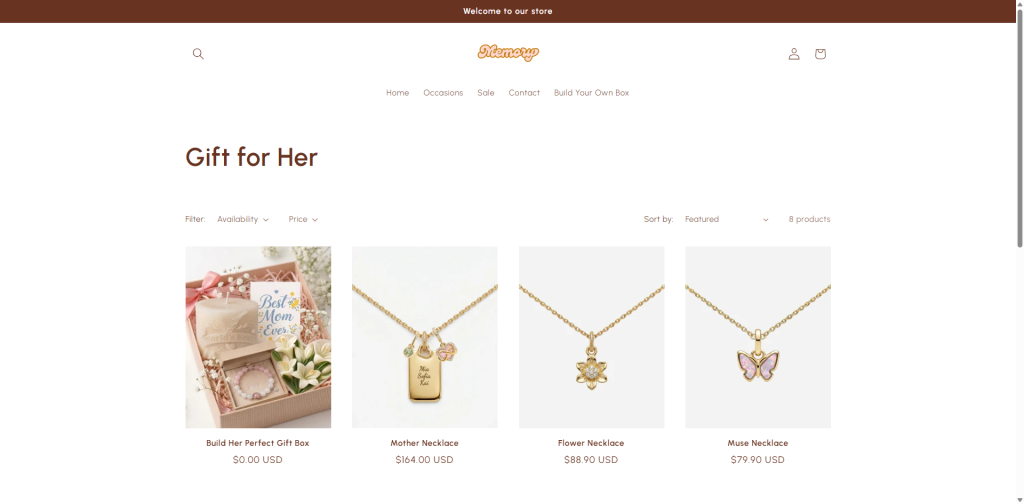
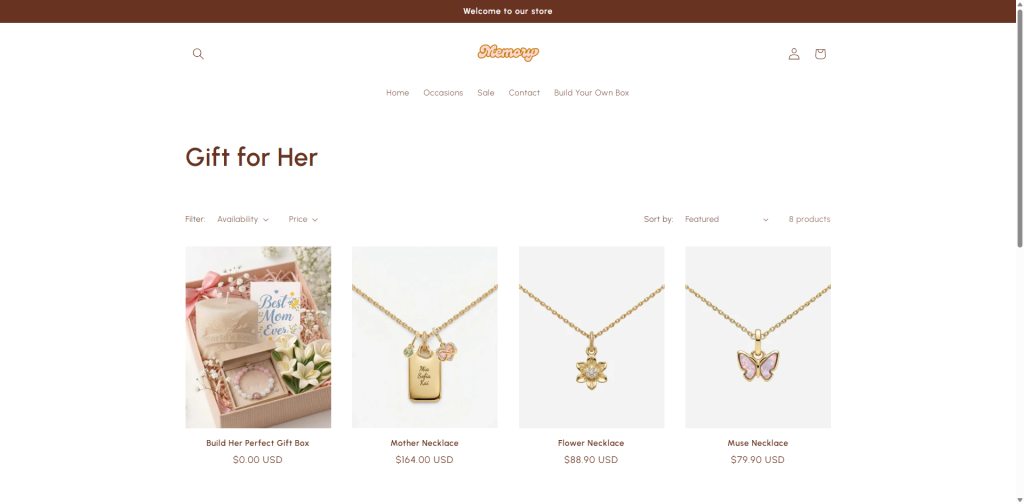
For example, when a customer visits your “Gift for Her” collection page, they should see your “Build Her Perfect Gift Box” right in the first row.
**✨ How this helps you get that first sale**
Customers often browse collection pages first. If your key box is buried on page 2 or hidden at the bottom, chances are they’ll miss it completely. But when it’s in the first row, it grabs their attention immediately — increasing the likelihood that they’ll click, open the box builder, and make that first purchase.
## Step-by-Step Setup
{% stepper %}
{% step %}
### Step 1: Open Your Collection
Log in to your Shopify admin and go to Products > Collections. Click on the name of the collection you want to organize.
{% endstep %}
{% step %}
### Step 2: Change the Sort Order
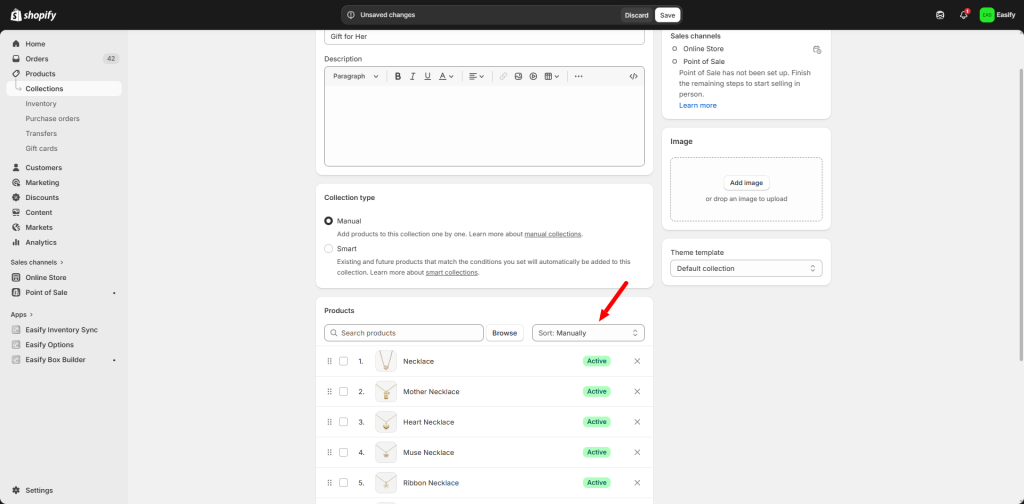
Scroll down to the Products section within the collection page. Look for the Sort dropdown menu and select **Manually**. This gives you full control over where each product appears.
{% endstep %}
{% step %}
### Step 3: Reorder for Maximum Impact
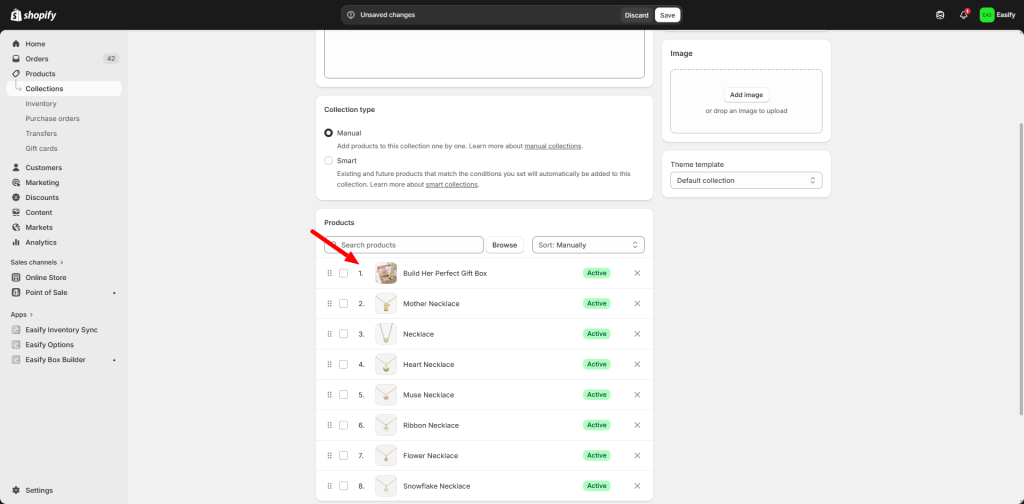
Now that manual sorting is active, you can simply click and drag the product images. Move your most eye-catching box to the very first position in the list. The products at the top of this list will show up in the first row on your storefront.
{% endstep %}
{% step %}
### Step 4: Save and Review
Verify that your changes are saved. Visit your live store and refresh the collection page to see your new, high-impact layout in action.
{% endstep %}
{% endstepper %}
That covers the three key places to position your box: your navigation pane, your homepage, and your collection page.
Now, let’s move on to the next step: making your product page work harder for you. Instead of a plain “Add to cart” button, you’ll learn how to change it to **“Start building your box”** — so customers know exactly what to do next.
Check out the next guide: [***“Customize Your Product Page Button for Box Building”**.*](broken://pages/OYF1UlsdBczXaRHoN8kH)
## Need assistance?
If you have any questions or encounter issues while following this guide, don’t hesitate to reach out through our in-app live chat. We’re always here to help you get that first order.
---
# Agent Instructions
This documentation is published with GitBook. GitBook is the documentation platform designed so that both humans and AI agents can read, navigate, and reason over technical content effectively. Learn more at gitbook.com.
## Querying This Documentation
If you need additional information that is not directly available in this page, you can query the documentation dynamically by asking a question.
Perform an HTTP GET request on the current page URL with the `ask` query parameter:
```
GET https://easify.gitbook.io/easify-box-bundle-builder-docs/sales-lab/first-sale-cheat-sheet/highlight-your-box-on-your-collection-page.md?ask=
```
The question should be specific, self-contained, and written in natural language.
The response will contain a direct answer to the question and relevant excerpts and sources from the documentation.
Use this mechanism when the answer is not explicitly present in the current page, you need clarification or additional context, or you want to retrieve related documentation sections.