> For the complete documentation index, see [llms.txt](https://easify.gitbook.io/easify-box-bundle-builder-docs/llms.txt). Markdown versions of documentation pages are available by appending `.md` to page URLs; this page is available as [Markdown](https://easify.gitbook.io/easify-box-bundle-builder-docs/sales-lab/first-sale-cheat-sheet/customize-your-product-page-button-for-box-building.md).
# Customize Your Product Page Button for Box Building
Once a customer lands on your box product page, you want them to take action. The default “Add to cart” button works, but it doesn’t tell the full story. Your customers aren’t just adding a product — they’re building something unique.
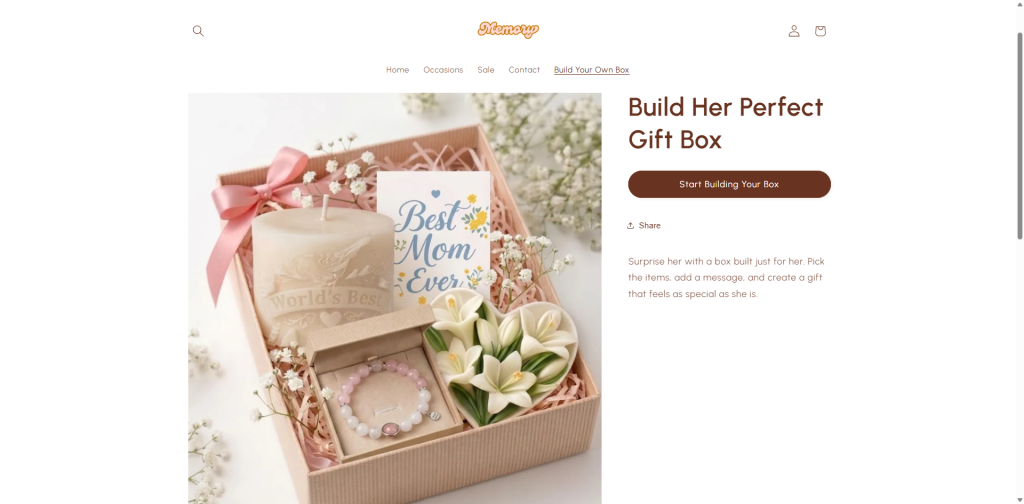
Changing the button to **“Start building your box”** (or something similar) sets the right expectation. It tells them: “Click here, and you’ll get to customize your own gift.”
For example, instead of a generic “Add to cart” on your “Build Her Perfect Gift Box” page, use **“Start building your box”** or **“Create your own”**.
✨ **How this helps you get that first order**
A clear, action-driven button removes confusion. Customers know they’re about to enter the box builder, not just add a plain product to cart. That clarity leads to more clicks, more builds, and faster first orders.
## Step-by-Step Setup
{% stepper %}
{% step %}
### Step 1: Open the Theme Editor
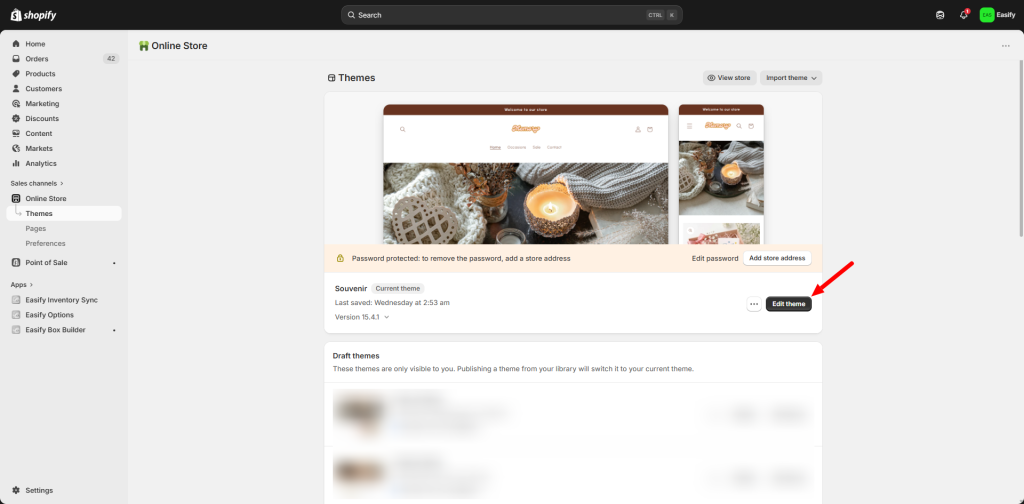
Go to Online Store > Themes. Click **Edit theme** next to your active theme.
{% endstep %}
{% step %}
### Step 2: Go to Your Product Page
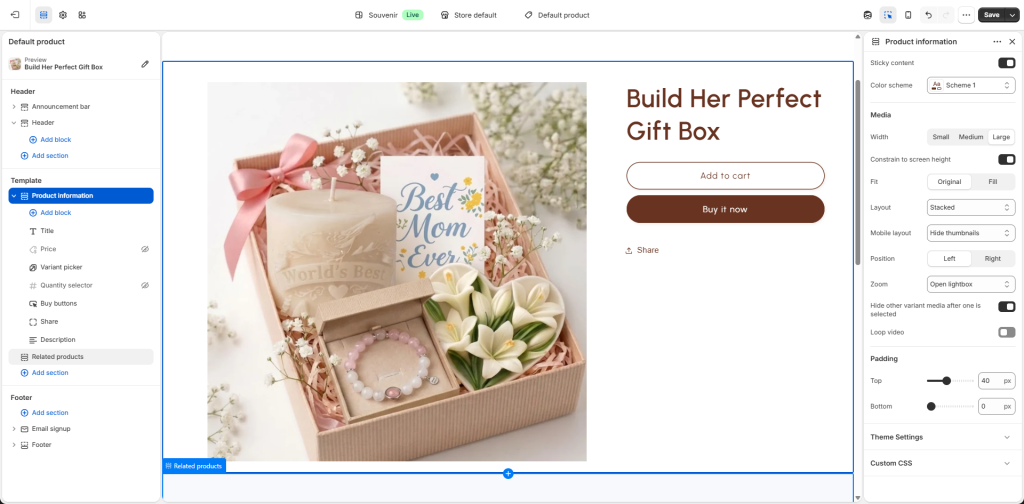
From the dropdown at the top of the theme editor, select Products > Default product (or the specific box product you’re using).
{% endstep %}
{% step %}
### Step 3: Add the Easify Box Builder Button
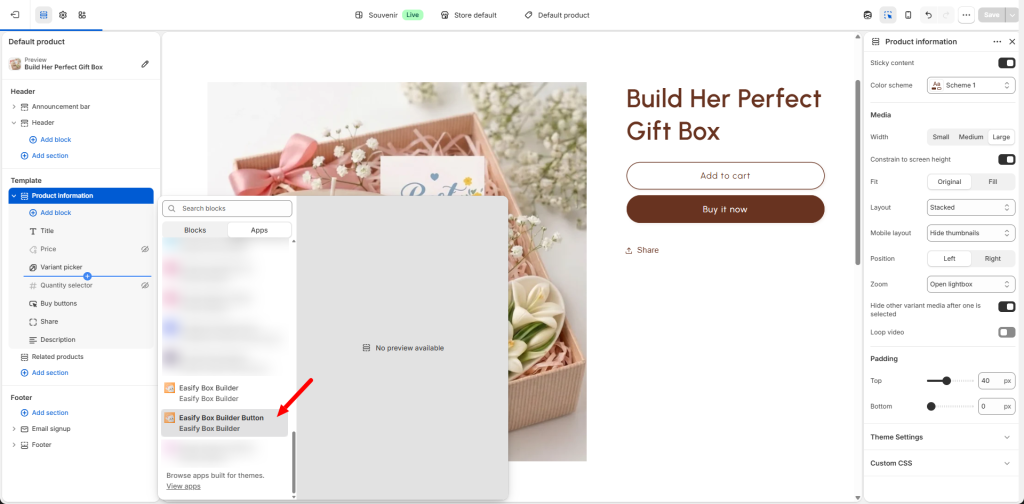
Scroll to the area where you want the button to appear. Common spots are near the price, below the quantity picker. Click **Add block** and select **Easify Box Builder Button**.
{% endstep %}
{% step %}
### Step 4: Position and Customize
* Drag it to where you want the button to appear
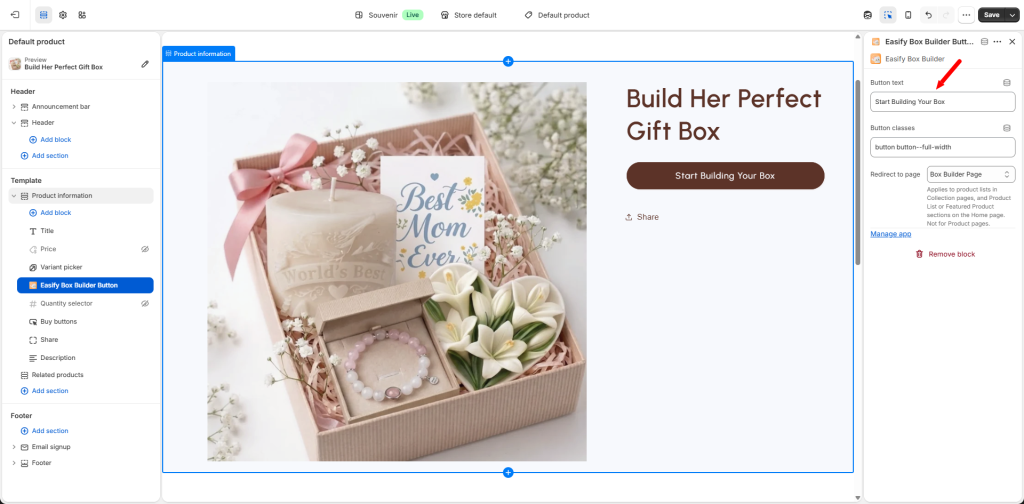
* Click on the block to change the button text (for example, “Build the box” or “Start building your box”)
When customers click this button, they go directly into the box builder to start choosing products for their box.
{% hint style="info" %}
**Note:** Make sure the default Shopify “Add to cart” button is visible. Do not hide it. The box builder button needs it to work correctly.
{% endhint %}
{% endstep %}
{% step %}
### Step 5: Save and Review
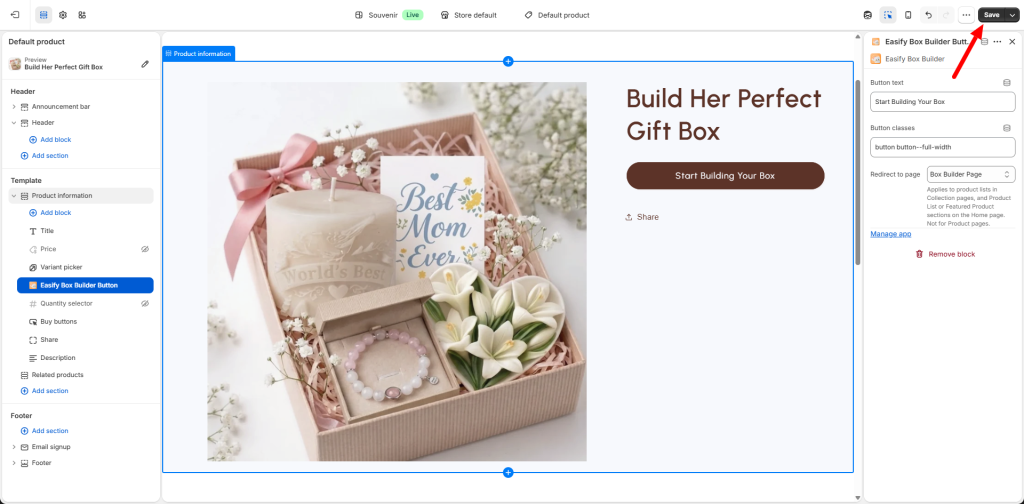
Click **Save** at the top right of the theme editor. Visit your live store and refresh the product page to see your new button in action.
{% endstep %}
{% endstepper %}
Now that your product page is set up, let’s spread the word about your box with AI videos. More views, more clicks, more first orders. Continue to [***“Create AI Videos That Sell Your Bundle Box”***](broken://pages/8VD9XTNcBkXYhc7Vss9L)
### Need assistance?
If you have any questions or encounter issues while following this guide, don’t hesitate to reach out through our in-app live chat. We’re always here to help.
---
# Agent Instructions
This documentation is published with GitBook. GitBook is the documentation platform designed so that both humans and AI agents can read, navigate, and reason over technical content effectively. Learn more at gitbook.com.
## Querying This Documentation
If you need additional information that is not directly available in this page, you can query the documentation dynamically by asking a question.
Perform an HTTP GET request on the current page URL with the `ask` query parameter:
```
GET https://easify.gitbook.io/easify-box-bundle-builder-docs/sales-lab/first-sale-cheat-sheet/customize-your-product-page-button-for-box-building.md?ask=
```
The question should be specific, self-contained, and written in natural language.
The response will contain a direct answer to the question and relevant excerpts and sources from the documentation.
Use this mechanism when the answer is not explicitly present in the current page, you need clarification or additional context, or you want to retrieve related documentation sections.